
Introduction
Your organization has enormous potential to solve climate change. Carbon Accounting is a powerful tool that equips organizations like yours with the data and insights to reduce greenhouse gas (GHG) Emissions and slow down the impacts of a warming planet. Done effectively, Carbon Accounting:
- Creates a clear picture of the GHG Emissions entering into the atmosphere
- Provides data transparency to demanding stakeholders (investors, customers, employees, regulators, activists)
- Sends demand signals throughout the the entire economy to reduce Emissions, which drives down the cost of new technologies that further reduce emissions
- Changes the culture on sustainability from the bottom up
CarbonSuite is built on the GHG Protocol methodology, the global standard for GHG Emission calculations. To learn more about our methodology, please Get in touch.
Congratulations on taking the first step! This handbook is a guide to enable your organization to measure, record, report, and reduce its emissions, all within the CarbonSuite platform. If you have not already, be sure to read our Carbon Accounting 101 blog post and review this overview video. Let’s get started!
1. Application Setup
- The steps for the initial NetSuite setup of the Carbon Accounting SuiteApp are outlined in the “CarbonSuite_Application Setup” document. Once you have finalized your purchase of the application, you will receive a copy of this checklist.
- Important: The CarbonSuite Application Setup Checklist is the first step in the process. If you have not completed the checklist, you will not be able to proceed to the next step.
2. Plan
2.1 Define Goals & Objectives
Why is your organization interested in tracking and reducing Emissions?
Consider the following business benefits of Carbon Accounting. Prioritize this list and communicate the benefits throughout your organization:
- Reduced energy costs
- Supply chain optimization
- Increased brand value
- Increased employee retention
- Increased access to capital
- Compliance with reporting regulations
- Management of climate risks and opportunities
2.2 Define Operational Boundary (Scopes)
Where do your organization’s Emissions come from?
Emission sources of all seven major GHGs are accounted for in your Operational Boundary: CO2, CH4, N2O, HFCs, PFCs, SF6, and NF3. Based on key characteristics of emissions sources, such as the control the organization has to affect them, the GHG Protocol organizes sources into the following three scopes:
- Scope 1: Emissions from sources that the organization owns or controls, like natural gas-fired furnaces or vehicle fleets. These are also called direct emissions.
- Scope 2: Emissions that are a consequence of the operations of the organization but occur at sources owned or controlled by another organization. These are most typically electricity, heat, or steam. These are also called indirect emissions.
- Scope 3: Indirect emissions that are not covered in scope 1 or 2, including business travel, employee commuting, and product transport. (Source: US EPA)
Which Scopes will your organization focus on when recording emissions?
All reporting frameworks require Scope 1 and Scope 2 to be recorded in full, and most frameworks require material Scope 3 emissions to be recorded. Each Scope is further grouped by Emission Category. In your analysis, consider which of these categories are the most impactful to your business operations and prioritize them first:
Scope 1: Direct Greenhouse Gas Emissions
- Stationary Combustion: Emissions from the burning of fossil fuels (e.g. natural gas, coal, oil) for heating, electricity or industrial processes.
- Process Emissions: Emissions from chemical reactions occurring in industrial processes (e.g. nitrous oxide emissions from fertilizer production).
- Mobile Combustion: Emissions from vehicles, such as cars and trucks, and other mobile sources (e.g. trucks, ships and airplanes).
- Fugitive Emissions: Emissions from unintentional leaks of planet-warming gasses or liquids (e.g. leaks from refrigeration equipment).
- Agriculture Emissions: Emissions from livestock (e.g. manure management and enteric fermentation) and from crop cultivation.
Scope 2: Indirect Greenhouse Gas Emissions
- Purchased Energy: Emissions from the generation of electricity, heat or steam that is purchased by an organization and used in its operations (e.g. electricity purchased from the grid).
Scope 3: Other Indirect Greenhouse Gas Emissions
- Purchased Goods and Services: Emissions from the extraction, production, storage, and delivery of goods and services purchased by an organization (e.g. Emissions from material suppliers).
- Capital Goods: Emissions from the extraction, production storage, and delivery of capital assets purchased by an organization (e.g. Emissions from asset suppliers).
- Fuel and Energy Related Activities: Emissions from the extraction, production and distribution of fuel and energy that is used by an organization. These Emissions occur upstream from the purchase of the fuel and energy (e.g. emissions from oil refining).
- Upstream Transportation and Distribution: Emissions from the transportation and distribution of goods and materials used by an organization (e.g. Emissions from transporting raw materials to a factory).
- Waste Generated in Operations: Emissions from the treatment and disposal of waste generated by an organization’s operations (e.g. Emissions from trash that is picked up on site and delivered to a landfill).
- Business Travel: Emissions from travel related to business activities (e.g. Emissions from air travel, car rentals, or hotel stays).
- Employee Commuting: Emissions from employees commuting to and from work (e.g. Emissions from driving a car to work or energy consumed while working from home).
- Upstream Leased Assets: Emissions from the extraction, production storage, and delivery of assets that an organization leases rather than owns (e.g. Emissions from producing a leased car).
- Downstream Transportation and Distribution: Emissions from the transportation and distribution of products after they are sold (e.g. Emissions from delivering finished products to customers).
- Processing of Sold Products: Emissions from processing products after they are sold (e.g. emissions from refining crude oil into gasoline).
- Use of Sold Products and Services: Emissions from the use of sold products and services (e.g. fuel consumption from a sold vehicle, energy use from using a laptop computer).
- End of Life Treatment of Sold Products: Emissions from disposing of or recycling sold products (e.g. Emissions from disposing used clothes into a landfill).
- Downstream Leased Assets: Emissions from assets that are leased to customers after they are sold (e.g. Emissions from a leased car).
- Franchises: Emissions from franchise operations that are not directly owned or controlled by an organization (e.g. Emissions from a franchised fast food restaurant).
- Investments: Emissions from investments in other companies or organizations (e.g. Emissions from an organization’s portfolio of investments in all types of companies).
- Water: Emissions from the consumption and treatment of water within an organization’s facilities (e.g. water consumption, water treatment).
2.3 Define Reporting Requirements
How do you plan to report your emissions?
Sustainability Reporting is a vast topic that varies depending on your organization’s size, region, industry, and public vs. private status. In recent years, reporting frameworks have largely consolidated into a few key frameworks. Our Climate Disclosure Tracker has up-to-date information regarding the key global frameworks, please follow the link here to review.
2.4 Set Targets
Do you plan to set Emission Reduction targets or Net Zero Targets?
If no, then continue through the Handbook. If yes, the consider one of the frameworks below:
Note, you cannot set targets without first having a base year established. This is a prerequisite. Your target will be relative to your base year, so without a base year, there cannot be a target.
2.5 Plan Resources
Who in your organization will be in charge of managing Carbon Accounting?
For small companies, carbon accounting may be the responsibility of a designated sustainability officer or a finance/accounting professional.
For medium-sized companies, a dedicated sustainability department may be established to manage carbon accounting, while the finance/accounting department will provide support.
For large companies, it is common to have a dedicated sustainability department that oversees carbon accounting, with support from operations and finance/accounting departments. The CEO/C-suite executive may also play a role in providing strategic direction and ensuring the implementation of carbon accounting practices throughout the organization.
Carbon Accounting, like Financial Accounting, is an ongoing task. At the minimum, CarbonSuite will require 1 person to be the “Carbon Controller.” This individual will be the process owner for Carbon Accounting, just like the Corporate Controller is the process owner for Financial Accounting. This individual will work with stakeholders throughout the business and in your organization’s value chain to collect emissions data and validate the results.
In companies of all sizes, business users will be engaged to participate in the carbon accounting process. Specifically, employees will be required to track additional data on Expense Reports, and the Accounting Department will be required to track additional data on Vendor Bills and Credit Card Transactions. It is important to communicate with these stakeholders early and often to ensure change management is effectively implemented.
Login to NetSuite


Login to NetSuite under the “CS – Carbon Controller” role

3. Setup Carbon Accounting
3.1 Setup GHG Periods
A GHG Period is a concept similar to financial accounting periods, but it is used for recording Carbon Accounting related transactions. It is a time frame during which an organization’s
Emissions performance is measured and reports are prepared. The GHG period allows for a systematic and organized disclosure of your organization’s Emissions. IMPORTANT: you will not be able to calculate emissions until a GHG Period is set up for the corresponding date range. Ensure that you set up GHG Periods for each month / year in which you are performing carbon accounting.


Name: The year you are creating GHG Periods for (Ex: 2023)

Start Date: The start date of the year (Ex: 1/1/2023)

End Date: The start date of the year (Ex: 12/31/2023)


3.2 Setup Organizational Boundaries
Which Subsidiaries / Legal Entities should be included in the “Emissions” of your organization?
You can choose from 3 options:
- Equity Share Approach
- Focuses on the ownership of companies
- Account for GHG emissions according to your share of equity in the organization. The equity share reflects economic interest, which is the extent of rights your organization has to the risks and rewards flowing from an organization.
- This approach is typically aligned with your percentage ownership of the organization.
- If percentage ownership is not used, economic substance overrides legal ownership of the organization (how much the parent organization benefits from the operations is more important than their legal ownership).
- Financial Control Approach
- Focuses on the financial control over an organization
- You have financial control over the organization if the former has the ability to direct the financial and operating policies of the latter with a view to gaining economic benefits from its activities.
- Financial control usually exists if you have the right to the majority of benefits of the organization, however these rights are conveyed. Similarly, you are considered to financially control an organization if you retain the majority risks and rewards of ownership of the organization’s assets.
- Operational Control Approach
- Your organization has operational control over an organization if the former or one of your subsidiaries has the full authority to introduce and implement its operating policies at the organization.
- Your organization accounts for 100% of emissions from operations over which it or one of its subsidiaries has operational control.


3.3 Setup Base Year Policy
A base year in Carbon Accounting refers to a specific year that is selected as a reference point for measuring the changes in an organization’s Emissions over time. The base year serves as a starting point for tracking the organization’s greenhouse gas (GHG) emissions and setting goals for reducing emissions.
For example, if an organization selects the year 2020 as its base year, it will measure its GHG emissions in 2020 and use this as the baseline for comparison with its emissions in future years.
Which year will you choose as your Base Year?
- Choosing a Base Year
- Most companies select a single year as the base year, but it is possible to choose an average of annual emissions over several consecutive years. If an average is used, the Base Year averaging should be done only on consecutive years, without gaps.
- The base year should be the earliest relevant point in time for which you have available data. A recent base year is usually preferred as it provides more accurate data and allows the organization to reflect the most recent changes in its operations and emissions.
- To be eligible to submit a target with Science Based Targets Initiative, your Base Year must be 2015 or later.
- Reasons for Recalculating Base Year Emissions
- Structural Changes:
- Involves the transfer of ownership or control of emissions-generating activities or operations from one organization to another
- Have a significant impact on a organization’s base year emissions
- Examples: Mergers, acquisitions, divestments, Outsourcing and insourcing of emitting activities
- If a structural change happens in the middle of the year, base year emissions need to be recalculated for the entire year, not just the amount of time remaining in the year
- Changes in calculation methodology or improvements in the accuracy of emission factors or activity data that result in a significant impact on the base year emissions data
- Discovery of significant errors, or a number of cumulative errors, that are collectively significant
- Improvements in data accuracy or calculation methodology if the changes are significant
- Each organization must establish a recalculation policy which describes in what scenarios recalculation will be required
- If applicable, the policy shall state any “significance threshold” applied for deciding on historic emissions recalculation. “Significance threshold” is a qualitative and/or quantitative criterion used to define any significant change to the data, inventory boundary, methods, or any other relevant factors. The GHG Protocol doesn’t specify a significance threshold but some frameworks do.
- The typical significance threshold is 5%.
- Structural Changes:
- Reasons NOT to Recalculate Base Year Emissions
- Facilities that did not exist in the base year
- Outsourcing / Insourcing that is captured under Scope 1 or 2
- Organic growth or decline:
- Increases or decreases in production output, changes in product mix, and closures and openings of operating units that are owned or controlled by the organization
- Changes that do not have a large enough impact to hit the significance threshold


3.4 Setup Item Records
NOTE: This step is only required if you are creating any Emission Sources that use the “Per Unit Purchased” Activity Type. This Activity Type is used to calculate Emissions based on the quantity of Items purchased on purchase transactions. You may want to return to this step after you have decided which Items will be used for Emission Source Mapping in Steps 4.1.
NOTE: The CS – Carbon Controller does not have access to Edit Item records for security reasons. In order to perform the steps below, you will need to access NetSuite in a role that has access to Edit Item records.


Emission Conversion Rate (Per Base Unit): This is the rate which is used to convert the Number of Units Purchased for this particular item. This will be used to convert the Base Unit of the Units Type selected on this Item to the CarbonSuite Unit for Emission calculation.

Emission Conversion Unit (Per Base Unit): This is the unit of the rate which is used to convert the Number of Units Purchased for this particular item. This will be used to convert the Base Unit of the Units Type selected on this Item to the CarbonSuite Unit for Emission calculation.

NOTE: You can also update these field via CSV Import

3.5 Setup NetSuite Transaction Field Filtering
There are 6 fields that will be deployed onto NetSuite Transaction lines as part of the CarbonSuite SuiteApp:
- Activity Amount
- Activity Unit
- Fuel Type
- Emission Source
- Emissions Amount (CO2e)
- Emissions Unit (CO2e)
3 of these fields, Activity Unit, Fuel Type, and Emission Source are filtered by a field that exists on the corresponding custom record, “Allow on NetSuite Transaction.” This is a check box that when checked, the corresponding record (Activity Unit, Fuel Type, Emission Source) is shown in the field dropdown with the same name on the NetSuite Transaction. This “Allow on NetSuite Transaction” can be updated in the user interface or via CSV import. By checking this box, you are allowing specific Activity Units, Fuel Types, and Emission Sources to show on the NetSuite Transaction line for selection by users. The navigation path for each record under the CS – Carbon Controller role is as follows:
- Activity Unit: Carbon Accounting > Lists > Units > Edit record (or export CSV, edit in CSV, then reimport)
- Fuel Type: Carbon Accounting > Lists > Fuel Types Edit record (or export CSV, edit in CSV, then reimport)
- Emission Source: Carbon Accounting > Lists > Emission Sources Edit record (or export CSV, edit in CSV, then reimport) OR use the user interface described in step 4.1.3 Emission Source User Interface.
IMPORTANT: If you do not check the “Allow on NetSuite Transaction” checkbox on these records, no values will show in the corresponding transaction line fields on the NetSuite Transactions. If you are planning to capture Activity Data on NetSuite Transactions, it is critical that you check this box on relevant records.
4. Record
4.1 Identify Emission Sources
The “Emission Source” record is a very important record within the CarbonSuite platform. The Emission Source serves the following main purposes:
- Grouping Emissions into Categories
- Mapping the NetSuite data structure to the CarbonSuite data structure. The Emission Source is similar to an “Item” record in NetSuite. It stores critical data fields required to make Emission calculations, and it links to a NetSuite master data record (Subsidiary, Location, Vendor, Item, Expense Category, Account) which allows the Emission Workbench feature to link the Emission Source to NetSuite transaction records.
4.1.1 Emission Source Mapping – NetSuite Data
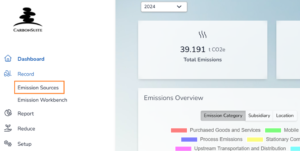
This is a saved search to assist with Emission Source mapping. The search shows all of the Vendor Bills, Expense Reports, and Credit Card Transactions in the system that have NOT been used in an existing emission calculation.
IMPORTANT: The Subsidiary and Location fields are not included in the standard Emission Source Mapping saved search. If you need to map your Emission Sources to Subsidiaries and Locations, you will need to edit the search to add the fields. To do this, click Edit this Search > click the Results subtab > add the required field(s) to the list > and click Save As.
PLEASE NOTE: As part of the CarbonSuite implementation, you may customize the Emission Source Mapping Saved Search and saved a new version of it. If that is the case, you will need to navigate to this custom Saved Search directly, rather than using the Carbon Accounting > Saved Searches > Emission Source Mapping navigation outlined below.


This feature enables you to generate a list of all the Vendor Bills, Expense Reports, and Credit Card Transactions in the system that have NOT been used in an existing emission calculation and do NOT have a corresponding emission source already maintained. This situation arises whenever a new Vendor, Item, Account, etc. has been created and used in a new Transaction after the last execution of the Emission Workbench.
 \
\


The CarbonSuite SuiteApp will automatically navigate to the Download Results page, where the Run instance will progress through stages: Queued > Processing > Completed
NOTE: If the Saved Search was customized, ensure that at least one of the fields has Summary Type = “Group”, otherwise it will error.


- Populate the following fields with data as required. You can find the list values for each field by navigating to Carbon Accounting > Lists:
- Name
- Emission Category
- Source Type
- Scope
- Activity Type
- Fuel Type
- Fuel Efficiency
- Fuel Efficiency Unit
- Year of Manufacture
- Country
- State / Region / Province
- Emission Factor Country
- Emission Factor State / Region / Province
- Zip / Postal Code
- Calculation Approach
- Unit
- Gas
- Custom Emission Factor
- Emission Factor Database
- Save the Excel file as a Comma Separated Values (.csv) file.
- Proceed to Step 4.1.4 to import the CSV file.
- The following fields will be populated to assist in selecting a suitable source type:
- CS_Source_Type_Recommendation
- CS_Recommendation_Reason
- CS_Recommendation_Confidence
- CS_Considered_Alternatives
- Copy the contents of CS_Source_Type_Recommendation to Source Type if deemed appropriate
4.1.2 Emission Source Mapping – Activity Data
Determine if there are any Emission Categories for which you have direct Activity Data that you are not planning to capture in NetSuite. Some examples are below:
- Mileage data from company-owned assets
- Fuel use data from company-owned assets
- Utility data (Electricity, Gas, Waste, Water)
- Employee Commuting data
- Refrigerant Leak data
- Purchased Goods and Services data collected directly from Vendors
- Data from Downstream Emission Categories where the data is outside of NetSuite:
- Downstream Transportation and Distribution
- Processing of Sold Products
- Use of Sold Products
- End of Life Treatment of Sold Products
- Downstream Leased Assets
To track emissions for any of these examples, you will need to create Emission Sources. You can either create Emissions in the User Interface via Step 4.1.3 or via CSV Import via Step 4.1.4.
4.1.3 Emission Source User Interface


- Name: A unique name for this Emission Source to be used for searching, example: “Purchased Electricity – Utility Vendor 1.”
- Emission Category: These are the GHG Protocol categories that are outlined in the 2.2 Define Operational Boundary (Scopes) section of this Handbook. After Scope, the Emission Category is the second level grouping of emissions. Emission Categories represent categories of emissions similar to the GHG protocol that enables reporting of an organization’s emissions under the GHG Protocol. This field drives the user experience and controls drop down values available under Activity Type.
- Scope: Specify the GHG Protocol scope in which the emission belongs. This field will be auto-populated from the Emission Category field.
- Subsidiary: The NetSuite Subsidiary in which this Emission Source belongs. Each Subsidiary represents an element of your “Organizational Boundary.”
- IMPORTANT: Any NetSuite transactions that use this record will be matched to this Emission Source when the Emission Workbench feature is executed, and GHG Transactions will be created using the populated on the Emission Source.
- Item: The NetSuite Item that this Emission Source maps to.
- IMPORTANT: Any NetSuite transactions that use this record will be matched to this Emission Source when the Emission Workbench feature is executed, and GHG Transactions will be created using the populated on the Emission Source.
- Account: The NetSuite GL Account that this Emission Source maps to.
- IMPORTANT: Any NetSuite transactions that use this record will be matched to this Emission Source when the Emission Workbench feature is executed, and GHG Transactions will be created using the populated on the Emission Source.
- Location: The NetSuite Location that this Emission Source maps to. If the Country, State, and Zip Code fields are populated on the Location record in NetSuite, they will be auto-populated onto the Emission Source form.
- IMPORTANT: Any NetSuite transactions that use this record will be matched to this Emission Source when the Emission Workbench feature is executed, and GHG Transactions will be created using the populated on the Emission Source.
- Expense Category: The NetSuite Expense Category that this Emission Source maps to.
- IMPORTANT: Any NetSuite transactions that use this record will be matched to this Emission Source when the Emission Workbench feature is executed, and GHG Transactions will be created using the populated on the Emission Source.
- Vendor: The NetSuite Vendor that this Emission Source maps to.
- IMPORTANT: Any NetSuite transactions that use this record will be matched to this Emission Source when the Emission Workbench feature is executed, and GHG Transactions will be created using the populated on the Emission Source.
- Calculation Approach: This field defines how Emissions will be calculated for this Emission Source. Choose from the following options:
- Custom Emission Factors: Select this value if you want to calculate emissions using a Custom Emission Factor that you set up in CarbonSuite via Setup > Custom Emission Factors. If this value is selected, emission calculations will NOT use the Standard Emission Factors that CarbonSuite maintains in the database.
- Standard Emission Factors: Select this value if you want to calculate emissions using CarbonSuite’s database of global Emission Factors. The exact Emission Factor Database can be selected in the “Emission Factor Database” field.
- Direct Gas Emissions: Select this value if you want to record emissions for this Emission Source by directly entering the greenhouse gas impact. If this field is selected, you will need to specify the “Gas” that is being recorded.
- Emission Factor Database: Select the database that you want to use to calculate emissions. This is a list of public and private databases that CarbonSuite manages on behalf of users of the application. Best practice is to choose the Emission Factor Database that is used in the region of the Emission Source, but sometimes data is unavailable. In cases where Emission Factor data is unavailable, you are able to select an Emission Factor Database from a different region.
- Activity Type: This field is filtered by the “Emission Category” selected. The Activity Type helps define the type of activity data that are expected on GHG Transactions. The activity type controls which set of formulas (engine) is appropriate to leverage for calculations based on the information available from the NetSuite transactions or emission activity data. The Activity Type indirectly determines different “Emission Factors” used to determine resulting emissions.
- Source Type: This field is filtered by the Emission Factor Database and The Activity Type fields. The Source Type is a reference to the physical asset that this Emission Source represents. Note, the Source Type is not mandatory in some cases and will not have any values in other cases, depending on the availability of data in the respective Emission Factor Database.
- Fuel Type: This field is filtered by the Emission Factor Database and The Activity Type fields. The Fuel Type is used in calculations where a fuel was burned to execute the activity. Note, the Fuel Type is not mandatory in some cases and will not have any values in other cases, depending on the availability of data in the respective Emission Factor Database.
- Custom Emission Factor: This field is only required if the Calculation Approach is “Custom Emission Factors.” This field allows you to map an Emission Source to a Custom Emission Factor that is specific to your organization. You can set up Custom Emission Factors via the Home Dashboard > Setup > Custom Emission Factors.
- Gas: This field is the exact greenhouse gas that is emitted for this Emission Source. This field is only required if the Calculation Approach is “Direct Gas Emissions.” This list is driven by greenhouses that are included in the Kyoto Protocol.
- Unit: The unit of the Emission Source’s emission-generating activity (in cases where Calculation Approach = “Standard Emission Factors” or “Custom Emission Factors”) OR the unit of greenhouse gas emissions generated by this Emission Source (in case of Calculation Approach = “Direct Gas Emissions”).
- Year of Manufacture: This field is only required if Activity Type = “Distance” and is used for precise calculations when the data entered is in Distance units (ex: miles or kilometers traveled).
- Fuel Efficiency: This field is only required if Activity Type = “Distance” and is used for precise calculations when the data entered is in Distance units (ex: miles or kilometers traveled). Enter the amount of the Fuel Efficiency of the vehicle in the units specified in the “Fuel Efficiency Unit” field.
- Fuel Efficiency Unit: This field is only required if Activity Type = “Distance” and is used for precise calculations when the data entered is in Distance units (ex: miles or kilometers traveled). This is the unit that reflects the amount populated in the “Fuel Efficiency” field.
- Country: The Country that this Emission Source maps to, used for reporting purposes.
- State / Region / Province: The State / Region / Province that this Emission Source maps to, used for reporting purposes.
- Zip / Postal Code: The Zip / Postal Code that this Emission Source maps to, used for reporting purposes. This is required for Scope 2 Emissions in order to calculate emissions using the grid location calculation methodology.
- Emission Factor Country: The Country that is used for Emission Factor Database lookups. This field will auto-populate after the “Emission Factor Database” field is selected if that Emission Factor Database is linked to a specific Country. This field allows users to use Emission Factors from Databases that are not in the same Country as the Emission Source being recorded.
- Emission Factor State / Region / Province: The State / Region / Province that is used for Emission Factor Database lookups. This field will auto-populate after the “Emission Factor Database” field is selected if that Emission Factor Database is linked to a specific State / Region / Province. This field allows users to use Emission Factors from Databases that are not in the same State / Region / Province as the Emission Source being recorded.
- Allow on NetSuite Transaction: Check this box to show this Emission Source on the NetSuite transaction line. If this box is checked, this Emission Source will appear in the “Emission Source” dropdown list on the NetSuite transaction line. If this box is NOT checked, this Emission Source will not appear in the “Emission Source” dropdown list on the NetSuite transaction line.
- Enable AI Scan: Check this box to allow this Emission Source to be considered by CarbonSuite’s “AI Scan” feature, which analyzes data from PDFs that are attached to transactions. If you do not check this box, the AI Scan feature will NOT execute.
- AI Context: Use this field to give additional instructions to the AI in order to enhance the collection of data from PDFs. For example, for a Scope 2 Purchased Electricity Emission Source, you could write: “Search for energy consumption in KiloWatt Hours. There are 5 separate meters.” IMPORTANT: While AI models are advancing rapidly, they still make mistakes. The better context you can provide, the better results you will get from the AI Scan function. It may take some experimenting with the context to get the best results.
4.1.4 Emission Source CSV Import


- Review the Error column. Resolve the data issues and save the CSV file.
- To re-import the Error file, return to Step #1 and repeat the steps. Repeat this process until all records have been imported successfully.
4.2 Calculate Emissions
The next step after identifying and creating your Emission Sources is to calculate emissions. In CarbonSuite, each Emission Source will have several “GHG Transactions” that capture the recurring emission of a given Emission Source. There are several ways to calculate emissions by creating GHG Transactions, see below.
4.2.1 NetSuite Transaction Entry
CarbonSuite makes it easy to add Emission Activity Data directly to your NetSuite transactions. You can use the following fields on the line level of Vendor Bill, Expense Report, and Credit Card Transactions to capture the Activity Data associated with the purchases:
- Activity Amount: This is the amount of the Emission Activity that is associated with the transaction line. For example, if the Vendor Bill is for an Electricity purchase, the Activity Amount would be the amount in KiloWatt Hours that was consumed in this billing period. As another example, an Expense Report for a Flight would have an Activity Amount measured in “Miles” or “Kilometers.”
- Fuel Type: The Fuel Type is used in calculations where a fuel was burned to execute the activity. Populate this field if the NetSuite transaction involved direct purchases or use of fossil fuels (e.g. purchase of gasoline for a company vehicle).
- Activity Unit: This is the unit used to measure the Activity Amount.
- Emission Source: Populate this field if you know exactly which Emission Source this particular transaction line maps to. Note, if you have set up your Emission Sources correctly, the Emission Workbench feature will perform this mapping for you. This field is hidden on the form. If you plan to use this field to capture the Emission Source associated with the Transaction line, you will need to expose the field on the form. There is a limitation where if you select the Emission Source directly in this field, you are NOT able to calculate emissions for the Fuel and Energy Related Activities Emission Category. Please be advised that if you select an Emission Source in this field and it requires emissions for the Fuel and Energy Related Activities Emission Category, you will need to manually enter these emissions.
- Emissions Amount (CO2e): This is the amount of CO2e emissions that is associated with the transaction line if the vendor can provide you with that information. This will allow you to avoid calculating the emission using spend-based or activity-based methods.
- Emissions Unit (CO2e): This is the unit used to measure the Emissions Amount (CO2e).
NOTE: for Emission Sources that are set up with Activity Type = “Financial Value,” you DO NOT need to populate an Activity Amount and Activity Unit, as the Emission Workbench engine uses the standard NetSuite “Amount” field to make the Emission calculation. The Financial Value calculation engine executes currency conversions as needed (ex: converting from the NetSuite Transaction currency to the currency of the Emission Factor). However, the Financial Value calculation engine does NOT currently include adjustments for inflation.
4.2.2 Emission Workbench
The Emission Workbench is a feature that automatically calculates emissions from your NetSuite Transaction lines. The following NetSuite Transactions are currently supported:
- Vendor Bills
- Expense Reports
- Credit Card Transactions
IMPORTANT: The Emission Workbench triggers a script called CS Workbench Processing Map/Reduce. You are able to manually update the script concurrency on the script deployment. Generally, the Emission Workbench performs best with concurrency 3 or below. Anything above concurrency 3 can cause performance issues.
Additionally, it is generally advised that you run the Emission Workbench no more than 3 months at a time to optimize performance. For a detailed prescription of Emission Workbench based on your account settings, please contact info@carbon-suite.com.
IMPORTANT: The Emission Workbench is not able to process NetSuite Transactions that have references to Inactive records. This includes the following record types:
- Items, Vendors, Employees, Customers, Accounts, Expense Categories, Locations, Departments, Classes, Projects, Partners
- If any Transactions have references to Inactive records, the corresponding GHG Transaction will be created without referencing the inactive record on the GHG Transaction.
IMPORTANT: Additionally, Emission Sources under the following Emission Categories are NOT currently supported by the Emission Workbench:
- Process Emissions
- Agriculture Emissions
- Processing of Sold Products
- Use of Sold Products and Services
- End of Life Treatment of Sold Products
- Downstream Leased Assets
- Investments
- Franchises


IMPORTANT: Best practice is to only run the Emission Workbench on closed NetSuite Accounting Periods. Ensure that the NetSuite Accounting periods in the date range you have selected are closed. This will prevent impacts from editing NetSuite transactions on the carbon accounting process.


Use the filters to segment the job run. These filters are applied to your NetSuite transactions to determine which transactions to analyze for emissions data. One Emission GHG Transaction will be created for each NetSuite Transaction line that matches to an existing Emission Source.


This is the start date for when the engine will look for NetSuite Transactions. The NetSuite Transaction Date is used for evaluation in this filter.

This is the end date for when the engine will look for NetSuite Transactions. The NetSuite Transaction Date is used for evaluation in this filter.

When you click Run Job, the Emission Workbench process will execute. Depending on your date range, this could take several hours. Please check the Status column, when the Status is Completed, the job has finished and you can review the results.

Click Back to Emission Results to review the results of the job execution.
- The emissions on the For Review tab failed to complete an Emission calculation, and the error is recorded. The following are the most common errors:
- The engine was unable to find a matching Emission Source
- Multiple Emission Sources with the same Transaction Search Criteria were found
- The NetSuite Transaction had Zero in either the Amount or the Activity Amount field
- The emission calculation engine failed because it was unable to find an Emission Factor within the criteria defined
- The emission calculation engine failed because input data was missing or incorrect (e.g. missing or incorrect units)
- NOTE: Any Emissions where the Emission Source has the “Enable AI Scan” checkbox checked will be returned on the For Review tab with the message: “CS-NS-9000: Valid AI Scan”. This is precautionary measure, as AI is still experimental and can make mistakes. Please take caution to review the results of the AI Scan before accepting the results. To move these Emissions to the Posted tab, simply edit and save the record.
- To resolve errors, click the Edit link under the Action column and review the Message populated in the Message box. Resolve the Error by editing the Emission record and then click Save. If the calculation executes successfully this time, the Emission record will move from the For Review tab to the Posted tab.
- Once you have moved all Emissions to the Posted tab, review the results to ensure that all Emissions calculated correctly.
- Repeat this process anytime you want to analyze NetSuite transactions in order to calculate emissions.

4.2.3 Emission User Interface


You can use the filters and search bar to locate an Emission Source for which you want to record Emissions. NOTE: all Emissions must be created from an Emission Source. You are not able to record an Emission without an Emission Source as the parent record.


Notice that if you have populated the same fields on the Emission Source, they will be defaulted onto the Emission record. If you have NOT defaulted any fields from the Emission Source, please reference the field descriptions in the 4.1.3 Emission Source User Interface section to populate the fields on the form.

Note, if you do NOT have a GHG Period set up for a date selected, you will get an error in the GHG Period field. The GHG period in which this GHG Transaction will be posted. This will be defaulted based on the value selected in the Date field. If you have not set up a GHG Period for the Date selected, please reference the 3.1 Setup GHG Periods section to set up a GHG Period for the required Date.

A unique name for this Emission, example: “Purchased Electricity – Utility Vendor 1 – September 2023.”

This field describes where the data for this Emission entry came from. For example, if it was from a vendor invoice, an external database, or externally supplied by a stakeholder.

Amount: The Amount of the Emission entry. If you are using the Calculation Approach of “Standard Emission Factors” or “Custom Emission Factors,” then this field will record the “Activity Amount” of the Emission. If you are using the Calculation Approach of “Direct Gas Emissions,” then this field will record the Direct Emissions amount of the Emission.
Unit: If you have defaulted the Unit on the Emission Source, this field will be auto-populated. If you are using the Calculation Approach of “Standard Emission Factors” or “Custom Emission Factors,” then this field will record the “Activity Unit” of the Emission. If you are using the Calculation Approach of “Direct Gas Emissions,” then this field will record the GHG Unit amount of the Emission.

If the Emission is calculated successfully, you will receive a green banner. If there was an error, you will receive a red banner.

4.2.4 Emission CSV Import
Open the GHG Transaction_Import_Template: GHG Transaction_Import_Template.xlsx
Make a copy of the template and populate the fields required for your GHG Transaction import.


On the Import Options page of the Import Assistant, choose a Data Handling option to indicate how the imported data will affect NetSuite data:
- Add — Select if all imported records are new to NetSuite.
- Update — Select if all imported records already exist in NetSuite, and the import is intended to modify these records.
- Add or Update — Select if imported records are a mixture of new and existing records.
*Note: If using Update functionality, ensure that the GHG Transaction ID is in the CSV File


- Review the Error column. Resolve the data issues and save the CSV file.
- To re-import the Error file, return to Step #1 and repeat the steps. Repeat this process until all records have been imported successfully.
4.3 Audit Emissions
Select a pre-built saved search to start from, for example “All Emissions”


If you want to further customize the saved search, you can do so by editing the search directly.

Add fields as columns to the saved search


You can either preview the search or click “Save As” to save a copy of the search

4.4 Manage GHG Periods


This Saved Search will show all of the open errors that exist on GHG Transactions. You can review the errors in the search view or export the errors and review in CSV / Excel. It is recommended to resolve all of the errors before closing the subsequent GHG Period.

If the GHG Period is “Locked,” you will not be able to post new GHG Transactions within this GHG Period.

If the GHG Period is “Closed,” you will not be able to post new GHG Transactions within this GHG Period.

If the GHG Period is “Reopened,” you will be able to post new GHG Transactions within this GHG Period.

5. Report
Once you have completed Emission calculations and audits for a given period, you can generate reports.
5.1 Publish GHG Report


5.2 NetSuite Saved Searches Analytics Workbooks
You have the ability to leverage standard NetSuite Saved Search and Analytics functionality to report on CarbonSuite data. NetSuite has lots of documentation on how to use both of these features, see below:
Saved Searches
Analytics Workbooks
Please see the steps below to access the Saved Searches and Analytics Workbooks that CarbonSuite offers out-of-the-box.
5.2.1 Access Pre-Built CarbonSuite Saved Searches
CarbonSuite installs several saved searches in your NetSuite environment to assist with emissions reporting. These saved searches can be customized to meet your specific needs and use cases. More information on NetSuite Analytics Workbooks is below:

5.2.1 Access CarbonSuite Analytics Workbooks
CarbonSuite also installs several pre-built Analytics Workbooks using NetSuite “SuiteAnalytics” functionality.


From here, you can review the different tabs of the Analytics Workbook. If you want to make changes to a CarbonSuite standard workbook, make sure that you “Save As” when you save your changes. More information on NetSuite Analytics Workbooks is below:

5.3 Communicate Results
It is very important to share your progress with your stakeholders. They will hold you accountable, and it is your responsibility to keep them informed on your progress.
In addition to formally reporting your emissions, you can use any of these methods to communicate your results:
- Submit Results: If you are disclosing your emissions within one of the frameworks listed in the Define Reporting Requirements section, then follow the disclosure requirements outlined for each reporting framework.
- Internal Communication: If communication is effective, your employees can be the most important agents of change. The goal is to build sustainability into the core of your organization, and keeping your employees engaged in the Carbon Accounting process is crucial for this.
- Organization website: Publish the information on your website, including emissions data and reduction targets, in a dedicated section or page.
- Annual reports: Include information on emissions and reduction targets in your annual reports, which can be distributed to shareholders, investors, and other stakeholders.
- Press releases: Issue press releases to announce new emissions reduction targets or updates on progress towards existing targets.
- Investor relations: Share information on emissions and reduction targets with investors through investor relations channels such as conference calls and webcasts.
- Social media: Use social media platforms to share information about your emissions and reduction targets with customers, employees, and the general public.
- Industry groups and trade associations: Participate in industry groups and trade associations and share information on emissions and reduction targets with other members.
- Sustainability reports: Publish independent sustainability reports that provide detailed information on your emissions and reduction targets.
6. Reduce
Once you have completed your carbon accounting, you are ready to start reducing your emissions.
6.1 Build Reduction Plans
Visit our website to see our list of Reduction Strategies that can be implemented within your organization to reduce emissions. Get in touch with the CarbonSuite team to discuss opportunities for tailored emission reduction plans, optimized for your business!
6.2 Purchase & Develop Offsets
Reduction is ALWAYS the preferred option, but carbon offsets can be a useful tool to offset the emissions you cannot reduce.
Depending on your region and reporting framework, generally speaking, you can reduce your total company emissions by purchasing verified carbon offsets from a voluntary carbon marketplace, such as Salesforce Net Zero Marketplace, Patch, Cloverly.
You can also reduce your total company Emissions by directly developing a project that reduces Emissions (planting trees; funding carbon capture / sequestration projects; funding mangrove planting in tropical regions, etc.) BUT that carbon reduction cannot be sold back onto the voluntary carbon market because you used it internally.
Additionally, if you generate carbon reductions in your business operations or fund offset projects, you can sell that onto the voluntary carbon market as a “carbon credit” but it needs to be verified and tested by a third party assurance provider (Ex: Verra Gold Standard). However, it is critical that your project can prove “Additionality” which basically means that there was a reasonable chance that the project would have produced greenhouse gas emissions if the project developer had not decided to convert it into a carbon credit project. Since the markets are all voluntary, the best approach is to work with an assurance provider to verify the project and the additionality before the credits are sold onto the voluntary market.
Conclusion
Congratulations! You have taken an important first step in fighting climate change. CarbonSuite automates the difficult and time consuming processes of Carbon Accounting, so your organization can easily track and analyze your emissions data and drive decision making throughout the organization. As always, if you have any questions, Get in touch with the CarbonSuite team and we will be happy to assist you on your journey to Net Zero.
References
US EPA. Center for Corporate Climate Leadership 2020. Guide to Greenhouse Gas Management for Small Business & Low Emitters. https://www.epa.gov/sites/default/files/2017-01/documents/guide_to_greenhouse_gas_management_for_small_business_low_emitters.pdf
GHG Protocol. Corporate Standard. https://ghgprotocol.org/corporate-standard
GHG Protocol. Figure [1.1] Overview of GHG Protocol scopes and emissions across the value chain.https://www.ghgprotocol.org/sites/default/files/ghgp/standards_supporting/Diagram%20of%20scopes%20and%20emissions%20across%20the%20value%20chain.pdf